
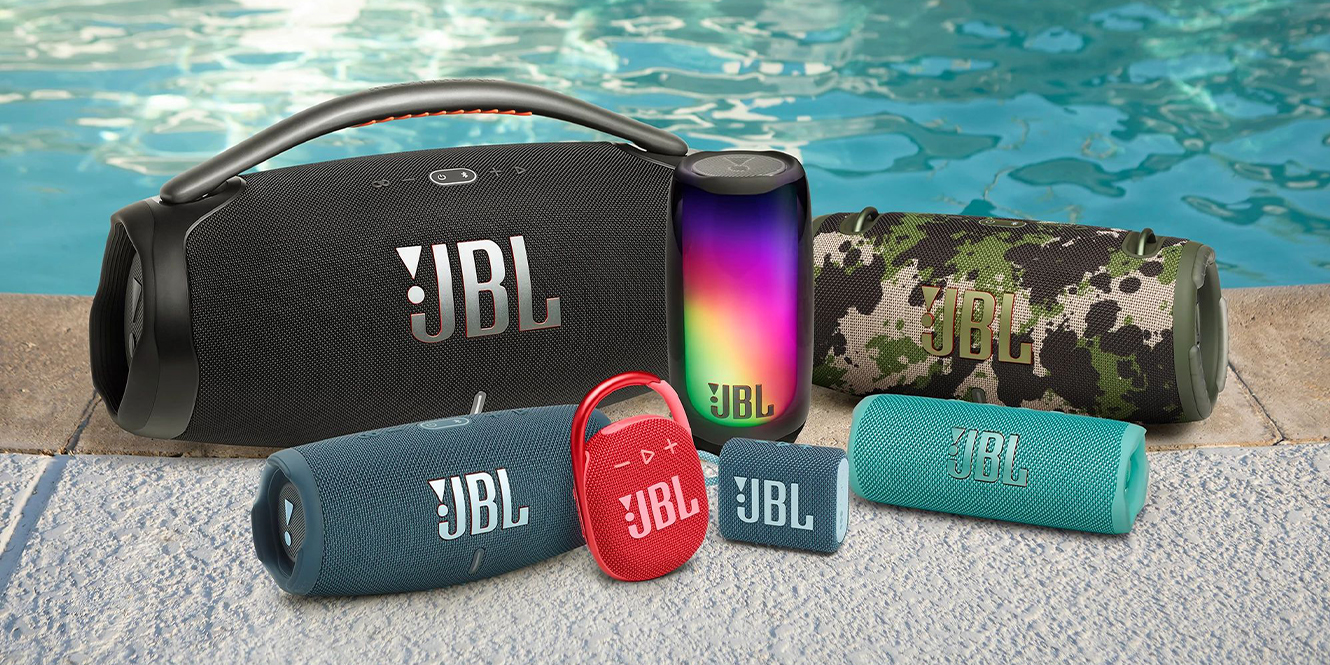

So you’ve got yourself a JBL Bluetooth speaker and you want to connect it to your phone, tablet, computer, or even another JBL speaker as quickly possible. No problem. Our handy guide will get you set for streaming all your favourite music in no time; you’ll soon be an expert in controlling your JBL PartyBoost or Auracast speaker!
Please note: The newest generation of JBL speakers now uses Auracast in place of PartyBoost. The steps to connecting your speakers are the same. However, all speakers must either use PartyBoost or Auracast, with the exception of the JBL Xtreme 4, which acts as a bridge between the two.
In a hurry?
At a glance, here’s how to connect JBL speakers:
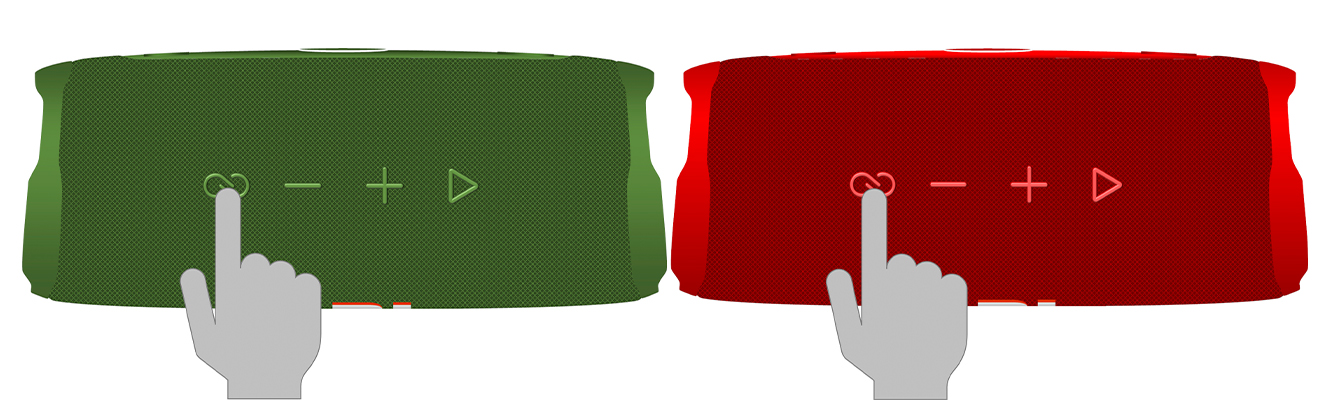
- Power on your JBL speaker and press and hold the Bluetooth symbol
- Find the speaker on your smartphone’s (or other source’s) list of Bluetooth devices. Select it to connect
- Play some music to check it’s working. If you have a few PartyBoost speakers, audio will just play out of one for now
- Press the “Connect” button on your PartyBoost speakers, they should all connect to each other within 30 seconds
How to connect to JBL speakers
First I’ll help you connect a device such as a smartphone, tablet or laptop to JBL speakers. Stick around until step 4 for how to connect two JBL speakers together. Let’s get started!
1. Power on and prepare to pair
First and foremost, prepare your Bluetooth speaker for pairing by ensuring it’s fully charged. Once charged, proceed to press and hold the Bluetooth symbol on the speaker until the LED begins to flash. Your speaker is now set for pairing.
To prepare a compatible smart device for pairing you need to turn its Bluetooth on. It can then scan for nearby Bluetooth devices – i.e., your speaker!
2. Connect to your device
Once both your speaker and device are prepared, your speaker should appear on the list of available Bluetooth devices. Once you see it, select it to connect.
Here’s how to find this list of Bluetooth devices on the most commonly used operating systems:
- Android 10 and above: Go to your Settings app, tap ‘Connect to Device, Bluetooth Pairing’, then ‘Pair New Device’.
- iOS: Tap the Settings icon, then the Bluetooth icon. Place your finger on the screen and drag it downwards. A scrolling icon indicates the iOS is searching. Your JBL Bluetooth speakers should be listed under ‘Other Devices’.
- macOS: Click the Apple Icon on your Keyboard and find ‘System Settings’. Click ‘Bluetooth’ and wait for the available options.
- Windows 10: Click the ‘Hidden Icons’ arrow (^) on the right-hand side of the taskbar at the bottom of the screen, click the Bluetooth icon, ‘Add Bluetooth Device’, then ‘Add Bluetooth or Other Device’.
- Windows 11: Click the ‘Wi-Fi Speaker’ cons on the taskbar (close to the time on the right-hand side). Tap the tiny Gear icon, then ‘Bluetooth & Devices’, then the large blue button ‘Add Devices’ located at the top right of the window. Then click ‘Bluetooth’.
The blinking LED on your speaker should now be completely solid completing the pairing process.
3. Play some music
To test that your speaker is connected and working, play some music.
If you have JBL PartyBoost speakers and want to link them all together, don’t fret! Your music will play out of just one speaker until you’ve completed step 4.
If the connection has failed, it could be for a number of reasons. You might want to check out some of the transferable tips and tricks in this related article to troubleshoot your pairing issues.
4. Connect multiple speakers
This final step is for JBL enthusiasts who have JBL PartyBoost or Auracast speakers. These speakers can be linked together for more power.
For Auracast, press the Auracast button on the speaker, and you will hear a sound to confirm the activation. You should then press the Auracast button on the other speakers you want to connect – these will all link up if they’re within Bluetooth range and set to broadcast mode.
For PartyBoost, press the connect button on all the speakers you want to connect. They should connect within 30 seconds. You can also download the JBL Portable app to see your speaker ecosystem and select either stereo or Party mode.
Once one speaker is connected to the source device, simply click the “Connect” button on each additional speaker to link them. They should connect within 30 seconds.
Disconnecting JBL Bluetooth Speakers
To disconnect your JBL speakers from one another, simply press the Auracast or Connect button again.
If your JBL Bluetooth speaker is going to pastures new, you may wish to disconnect it permanently from your controller device. Go to your list of Bluetooth devices and follow the steps below.
- Android: Tap ‘Forget’ which has a bin icon. Confirm that you want to forget the device.
- iOS & macOS: Tap the blue exclamation Icon, then hit ‘Forget This Device’. Again, confirm that you want to forget this device.
- Windows: Before you click ‘Add Bluetooth Device’, look for ‘Show Bluetooth Devices’ and click ‘Remove Device’. You’ll be asked to click ‘Yes’. Once clicked, it’s gone.
Connecting to the JBL Portable App
The JBL Portable app is free to download and will help transform your JBL Bluetooth speakers into a party animal’s dream.
The app allows you to control how the speaker sounds with its EQ system. You can also use it to keep track of your connected speakers and update the speaker’s firmware. Taking control of the PartyBoost and Auracast features is easy, so long as your speakers are PartyBoost- or Auracast-enabled and positioned within 30 metres of each other.
What’s more, you won’t need your phone on hand when adding new speakers to the existing system. You can simply hit the PartyBoost or Auracast button on the new speaker to integrate it.
As well as Party mode, you can create a stereo pairing.
Here’s how to connect to the app:
- You’ll need to download it first. Bear in mind that the JBL Portable app is only available on Android and iOS
- Make sure your Bluetooth controller (source device) is synced to your speaker
- Open the JBL Portable app and hit ‘Connect’
- After 30 seconds, your speakers will show in the in-app list
- If you want a stereo setup, simply hit ‘Stereo’; if you want the full room-filling experience, hit ‘Party Mode’
To disconnect, just click ‘Connect’ again.
PartyBoost vs. Auracast speakers
JBL’s range of PartyBoost Bluetooth speakers includes Boombox 3, Xtreme 4, and Charge 5, to name a few. Just as we transitioned from Connect+ to PartyBoost, we’ve now gone from PartyBoost to Auracast. The latest connectivity method, however, isn’t exclusive to JBL gear; rather, it’s a revolutionary Bluetooth feature that allows a source device to broadcast its audio to an unlimited number of audio receivers, whatever the brand.
The most recent generation of speakers uses Auracast, including JBL Go 4 (JBL Go 3 did not include PartyBoost or Auracast), JBL Clip 5 (JBL Clip 4 did not include PartyBoost or Auracast), JBL Flip 7, and JBL Charge 6.
The Xtreme 4 includes both PartyBoost and Auracast, so it’s a great speaker to bridge you over to the new connectivity method.
Our JBL Speaker Recommendations
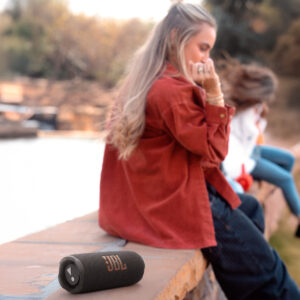
Flip 7
 Key Features
- IP68-rated, meaning it’s waterproof, dustproof, and dropproof (within reason!)
- AI Sound Boost audio enhancement
- 14-hour battery life, or 16 hours with Playtime Boost
- Auracast-enabled
Despite its tiny size, you can tell the JBL Flip 7 is well-designed. It feels solid and has an IP68 rating, meaning it’s resistant to dust, water, and drops. But its real highlight lies in its use of AI to enhance audio. JBL’s AI Sound Boost adjusts audio in real time to deliver rich bass and detailed highs, which works especially well at higher volumes.
The speaker also supports USB-C lossless audio playback and Auracast.
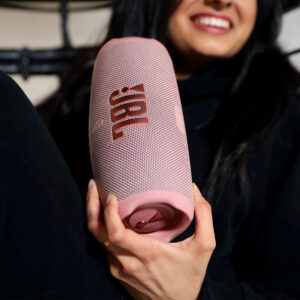
Charge 5
 Key Features
- Includes JBL’s Original Pro sound
- 20 hours of playback time
- IP67-rated (waterproof and dustproof)
- PowerBank mode (charge your phone from your speaker)
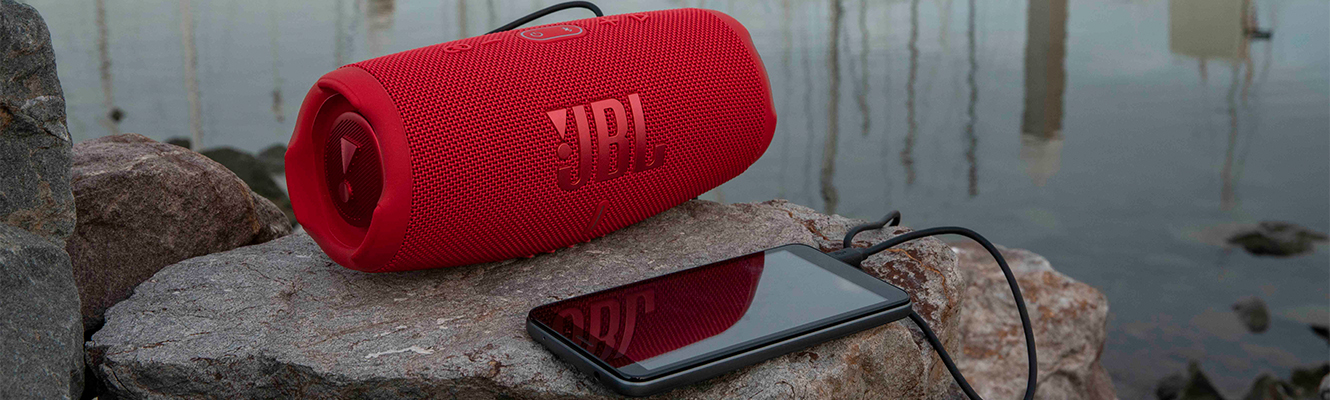
I suspect the Charge 5 will be the general favourite; it boasts the best usable features of the larger Xtreme 3 (the next speaker on our list) but with a smaller body and price. The PowerBank feature is a particular favourite, it allows you to charge your phone from your speaker! And it’s still small enough to carry by hand.
As for sound, this is a step up for sure. It’s bigger than the Flip 6 so can house a larger woofer and ABRs to more effect. You can hear where the extra money has been spent.
Out of this trio of speakers, the Charge 5 is definitely the best value for money. It’s affordable and offers an extensive array of features, much more than other speakers at this price point—not just within JBL’s own lineup.
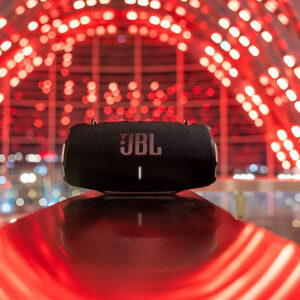
Xtreme 4
 Key Features
- 24 hours battery life
- Auracast- and PartyBoost-compatible
- IP67-rated (waterproof and dustproof)
- PowerBank mode (charge your phone from your speaker)
I’ve got to say, the JBL Xtreme 4 really was my favourite as I prefer not to hold my speaker when out and about – that’s where the carry strap came in really handy (I sound old).
Sound-wise, the Xtreme 4 uses twice as many drivers as the Charge 5. The AI Sound Boost technology then brings extra definition and depth. Like the Charge 5, it also includes the PowerBank system, which is a fantastic convenience.
FAQs
Can I use the Xtreme 4 without a Wi-Fi signal?
The beauty of the Xtreme 4 is that you can use it without a Wi-Fi signal. You can use it wherever you are, and you especially won’t need Wi-Fi if your music is all downloaded on your phone!
Do I have to use an app with my JBL Flip 6?
You don’t have to use an app with the JBL Flip 6. If your music is stored on your phone, you can stream directly to your Flip 6 or connect it to another JBL PartyBoost Speaker by hitting the PartyBoost button mode on the Flip 6.
Can I update the firmware on my JBL Bluetooth Speaker with the JBL Portable App?
You can update the firmware on your JBL speaker via the JBL Portable app. Navigate to the Firmware page of the app, tap ‘Upgrade’, and a timer will start. Once this timer has turned green, your firmware has been updated.
Final thoughts
If you own some JBL speakers or are looking for your first one, we hope this guide helps you get connected!
The great thing about JBL PartyBoost and Auracast speakers is that they allow you to play music from all corners of the room – without the need for a complex sound system.
Why not check out our full range of portable Bluetooth speakers and other great JBL products via the links below?

Can I use the Auracast feature without the app? I am not using a phone but a blue tooth MP3 player. I can get either of my go4 to connect to the MP3 player. But I can not get them to play in stereo. I DL the app and tried it all on my phone and it worked. But when I went back to the MP3 player the Auracast/stereo/speaker to speaker does not work again.
Hi David.
To create a stereo pair using the latest Auracast Bluetooth connection. JBL do say you need to use the JBL Partybox app. This can be found on either the Apple Store or Google Play
Kind regards, Shane
I have jbl4 speakers, I have two of them that I have had for a few years now. One speaker still works fine but one will not work anymore on my lap top HP but it does work on my Iphone, don’t know if i’m doing something worng or what the problem is.
Hi Larry
Do you have the model number for the JBL device? It seems there are more than one version with the affix 4.
Kind regards, Shane